Generating your first draft
Upload the funder's application questions and get a complete first draft, grounded in your knowledge base.
Updated October 22, 2026
The Apply tab is where applications get written. You bring the funder’s questions; PowerGrant answers them using your knowledge base — your real mission, programs, numbers, and past wins.
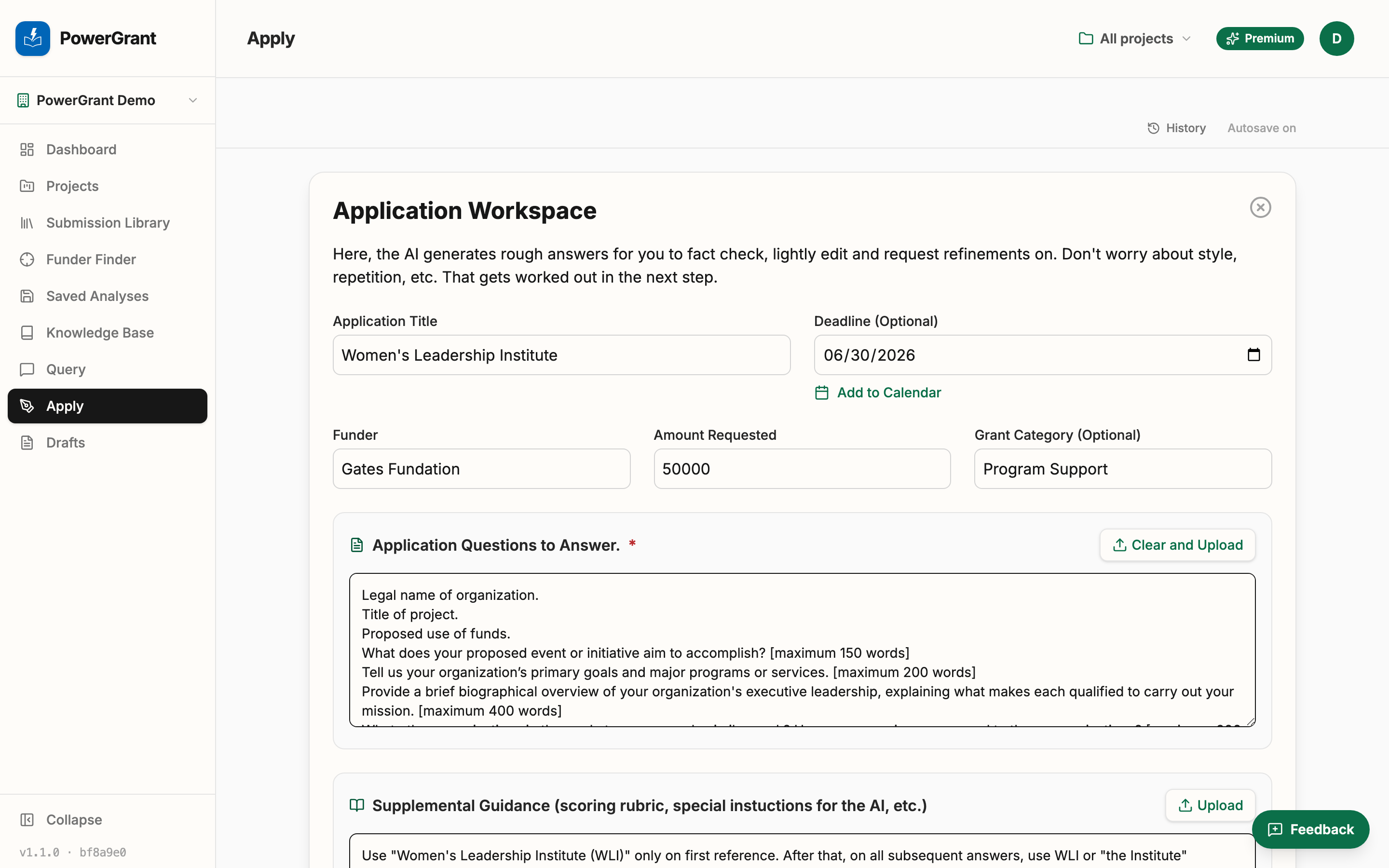
Start an application
-
Open the Apply tab and fill in the basics: the grant’s name, the funder, and any details you have (amount, deadline, category).
-
Under Application Questions to Answer, click Upload and add the funder’s application document — PDF and Word both work — or paste the questions in directly.
-
Click Generate Question List in the bar at the top. PowerGrant reads the document and breaks it into the individual questions you need to answer. Each becomes its own section, numbered Q1, Q2, Q3 and so on.
Those numbers are fixed. Extractors sometimes pick up a section header or a stray line as if it were a question — delete those, and the numbering of everything else stays put. Delete Q15 and Q16 is still Q16, so “have a look at question 37” means the same thing tomorrow as it does today. That matters most on the long applications, where scrolling to find a question by its text is the slow part.
-
If the funder provided extra material (guidelines, priorities, a program overview), add it under Supplemental Draft Writing Guidance. The AI follows it when drafting (word limits, “no acronyms” rules, tone requirements). Once your questions are listed, the setup fields fold into a summary; click Edit setup to open them again.
Generate the draft
Click Generate First Draft. PowerGrant answers every question from your knowledge base — this is a starting point built from your actual facts, not generic grant-speak.
A few things worth knowing:
- Answers you want to write yourself can be marked as a Unique Answer — the AI leaves them alone and treats your text as authoritative. Teammates can still comment on one, and Refine asks for confirmation before it will touch your words. Fill in every Unique Answer before you generate: the button waits until each one has text.
- Length limits. Under each question is its word or character limit. A limit the question states, like “(500 words)”, is picked up for you; click it to change it or turn it off, or click Add length limit to set one. The counter under the answer counts against it, and the first draft, every refinement and the second draft keep to it.
- Your house style is applied automatically. If your organization has set Writing Guidance, a Writing Guidance applied note sits next to the Generate First Draft button, and the AI follows those standing instructions as it writes. No note means no guidance is set yet.
- Autosave is on. Your work is saved as you go, and the bar at the top says so — there is no Save button to remember.
- The bar at the top follows you. It shows which stage you’re in, how many answers you’ve marked Complete, and the one thing to do next. Marking answers Complete is how a multi-week application keeps its thread; it isn’t something the next step waits on. See marking an answer Complete.
- Daily AI usage meter. Each person has a generous daily AI allowance. Once you’ve used some of it, a small “AI today” meter appears in the bar at the top showing where you stand; it turns amber as you approach the limit. If you do hit the limit, generation pauses and the meter shows the exact local time it resets (the allowance renews at midnight UTC). Very large applications with a big knowledge base use the allowance fastest.
- Very large knowledge bases. Everything you have added is available to the AI, but on a big library the longest documents are matched to the questions they are relevant to rather than being sent with every single question. That is what keeps a long application from exhausting your allowance part way through. If a particular document needs to inform every answer, mark it Always include in your Knowledge Base.
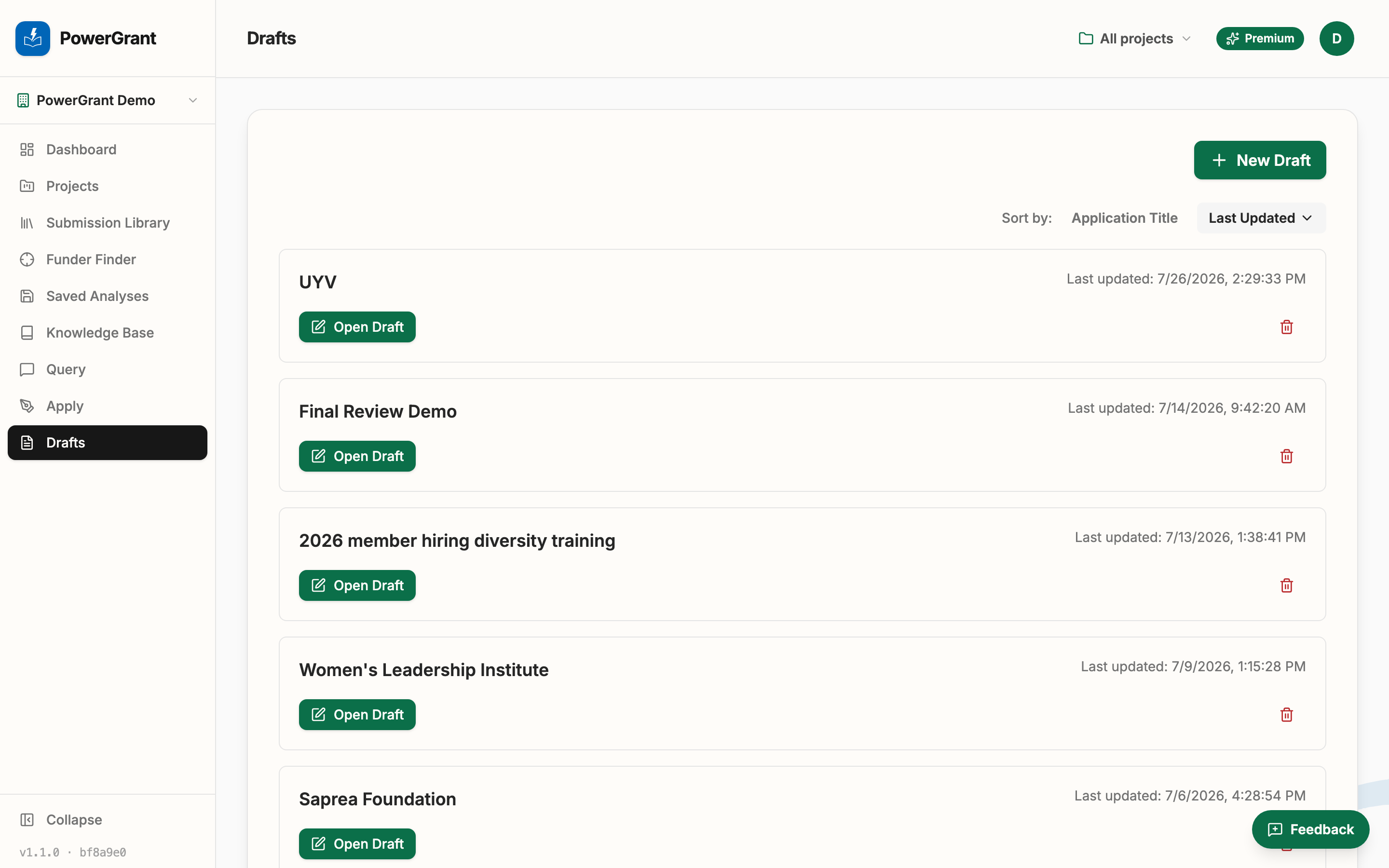
Every application you start is saved in the Drafts tab, so you can leave one half-finished and come back to it.
Making it better
The first draft is deliberately a draft. From here you’ll typically refine individual answers, then run the second draft to pull the whole application together before exporting.
If an answer gets a fact wrong or misses your best number, that’s almost always a knowledge-base gap — add the fact and regenerate that section.