Uploading documents to your knowledge base
What to upload, what happens after you do, and why past applications are gold.
Updated October 13, 2026
Your knowledge base is the single source of truth the AI writes from. The more of your organization’s real story it holds, the better every draft gets — and it never uses anything you haven’t put there.
What to upload
In rough order of value:
- Past grant applications — wins and losses. These teach the AI what a strong answer looks like in your voice.
- Annual reports and impact reports — your outcomes, numbers, and stories.
- Program descriptions and theory-of-change documents.
- Leadership bios and board lists.
- Marketing material, newsletters, transcribed talks — anything that carries your organization’s voice.
Word documents (.docx), PDFs, plain text and RTF files, Excel spreadsheets (.xlsx and .xls), and CSV files all work. Don’t worry about formatting. PowerGrant reads the content, not the layout. Word styling, bookmarks, and tracked-change artifacts are stripped out on the way in, so you don’t need to re-save anything as plain text first.
Pictures and charts are skipped. PowerGrant extracts the words, not the
images, so a document with photos or graphs is fine to upload as-is — you’ll
see a short [Image: …] note where a picture sat. If a chart holds a number
that matters, put that number in the text or add it as a fact.
Spreadsheets come in as tables. PowerGrant reads every sheet in the
workbook and turns each one into a table, so the AI can still tell which
number belongs to which row and column. Values come through the way Excel
shows them, so $1,200, percentages, and dates look the way they do on your
screen. Empty rows and columns are left out, and a workbook with more than one
sheet gets each sheet’s name above its table.
Tables in Word documents stay tables too. A budget or a timeline laid out as a table in a Word document comes in with its rows and columns intact, the same way a spreadsheet does. Merged cells keep the columns lined up, so each figure stays under the right heading. Tables in PDFs still come through as plain lines of text, so if a PDF’s table matters, upload the Word or Excel version instead.
How to upload
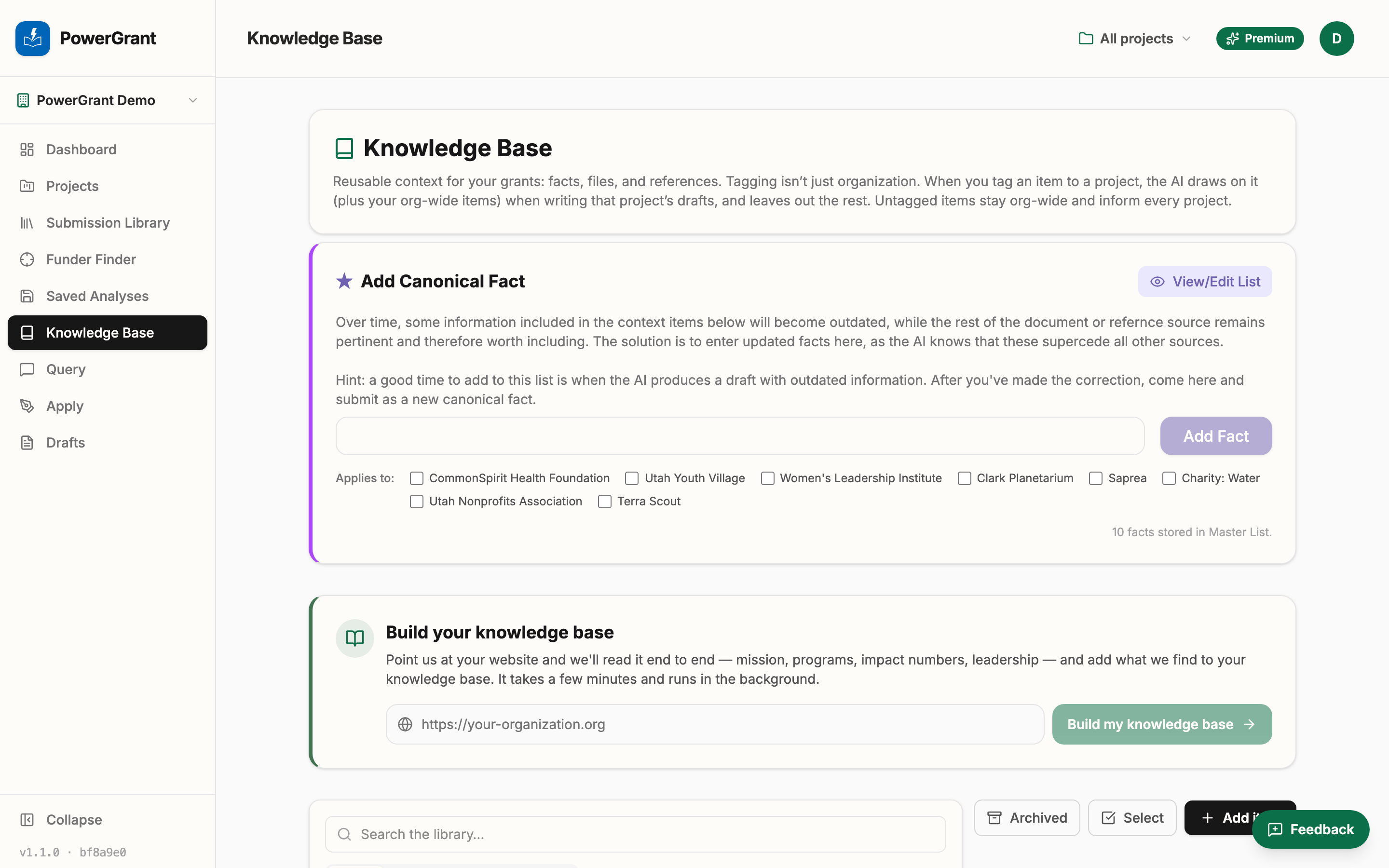
- Open your Knowledge Base from the sidebar.
- Click Add item. On the File tab, drop a document or spreadsheet into the box, or click the box to browse.
- PowerGrant reads the text out of the file, usually in a few seconds. Check the title and category, tag it to a project if it belongs to one, and click Add to library.
- If the document has newer figures than facts you’ve already saved, PowerGrant offers to update those facts. Choose Update fact or Dismiss for each one. Nothing changes until you do.
If a file won’t read, or reads as almost nothing
Two things can go wrong on the way in, and PowerGrant now tells you about both:
- “Couldn’t read this file.” The message includes the specific reason. Most often the file moved or changed on disk between choosing it and uploading — re-download it and try again, or paste the text directly. Every failure is also reported to our team automatically, so if it keeps happening we will already be looking at it. If a PDF still will not read, pasting its text as a text item gets you unblocked immediately and loses nothing the AI would have used.
- “Very little text could be read from this PDF.” The PDF is probably scanned images rather than digital text. The AI can only use text it can read, so a scanned document contributes almost nothing even though the upload succeeds. If the document matters, paste its text as a text item instead.
If the app tells you a document may already be in your library, check the named item before adding — the same content pasted earlier as text counts as a duplicate even when the file names differ. You can always add it anyway.
Very large documents
Most documents go straight in. A very long one gets a question first, because a huge document dilutes the AI’s attention instead of adding to it.
- Up to 50,000 characters of text: added right away, no questions asked.
- 50,000 to 250,000 characters: PowerGrant asks first, with three choices: Condense and add, Add it as is, or Cancel.
- Over 250,000 characters, or a file over 25 MB: declined, with a note asking you to split it into the parts that matter (one per program, per year, or per topic) and add those instead.
Spreadsheets count the same way. The table layout adds a few characters to every cell, so a very large export can reach these limits sooner than you might expect.
Condense and add writes a shorter version that keeps the figures, dates, names and outcomes, and adds that to your library. The dialog tells you roughly how long the condensed version will be. A long document takes a few passes, and the dialog counts them off as it goes. If condensing fails, the dialog stays open so you can try again. It never quietly adds the whole document instead.
Nothing is thrown away. Your original file is kept, and so is its full text. Open the item and the Extracted text tab tells you it was condensed, and from how many characters. Restore full text puts the whole document back in one click.
Add it as is is always there. It is your library, and some documents, like a funder’s full guidelines, really do need to go in whole.
A note on quality
The AI treats your knowledge base as verified truth, so a stale number in the library becomes a stale number in a draft. When something changes — budget, headcount, program reach — update it in the knowledge base once and every future draft uses the new figure.
Your knowledge base score
The Knowledge Base score panel at the top of the Knowledge Base page rates your library out of 100 across ten areas a grant reviewer expects an organization to be able to speak to:
Mission, Vision and Values · History and Founding Story · Unique Value / Theory of Change · Programs and Services · Population Served and Need · Accomplishments and Proof · Leadership, Staff and Board · Financials · Legitimacy Signals · Voice and Language Notes
Each area is rated Absent, Poor, Moderate, Good or Excellent, and all ten are always listed — an area you have nothing for is visibly missing rather than quietly left out. Below the ring, PowerGrant lists what to add for the areas that need it most, worst first.
One strong document can carry an area on its own. An area is rated by your best single source, not by how many files mention it. A thorough annual report can move several areas at once, and adding five thin documents that each gesture at your mission will not beat one that states it properly. Upload the best version of a thing, not more versions of it.
The score updates instantly as you add or remove documents. Re-check my score re-reads your library from scratch — use it after a batch of uploads, or the first time you open the page with a library you built before scoring existed.
The score is a prompt, not a grade. A 62 with a strong Programs section beats an evenly mediocre 75 for the proposal you happen to be writing this week.
What belongs here, and what doesn’t
Your knowledge base holds what is true about your organization. How you want that written — the words you use, the tone, the things you never say — goes in Writing Guidance instead. It sits on this same page, inside the How the AI writes for you panel at the top: click Manage and it is the right-hand half. Uploading a style guide as a document does not work as well: it becomes one more source among many, where guidance is a standing instruction the AI follows every time.
Browsing what you have added
Once you have more than a handful of items, switch the library from Cards to List using the toggle above it. List view puts one item per row so you can scan a large library quickly. Search and the category and project filters work the same way in either view.
Always include an important document
Everything in your knowledge base is available to the AI. On a large library, though, your longest documents are matched to the questions they are relevant to rather than being sent with every single question — that is what keeps a long application from using up your daily AI allowance part way through.
Usually that is the right call. Sometimes it isn’t: a document may hold something the AI needs no matter what the question is, like the staff roster that every leadership and capacity answer depends on.
To make sure a document is never left out, mark it Always include. Hover an item in your library and click the pin, or use the Always include button on its card. Marked items are sent with every question for every application.
A few things worth knowing:
- Mark the few that earn it. There is only so much room for always-included content. If you mark more than fits, everything you did not mark starts being chosen per question instead — and long applications may run into your daily AI limit. The Knowledge Base tells you when you have crossed that line.
- A short summary is often better than a long document. Small items are already included in every question automatically, so adding a one-page summary of a long report costs you almost nothing and needs no marking at all.
- It does not change what the AI writes about, only what it can see. The answer still has to be relevant to the question being asked.